

How to Connect Google Ads to Slack
Written by Ahmed Ashraf, founder of PaidSync.ai.
 Slack



What Google Ads in Slack gives you
How do I connect Google Ads to Slack? Connect Google Ads in PaidSync, then open Connect apps, press Add to Slack and pick a channel for the brand. Every morning the brand's Google Ads report posts there, and anyone in the channel can ask @PaidSync a question.
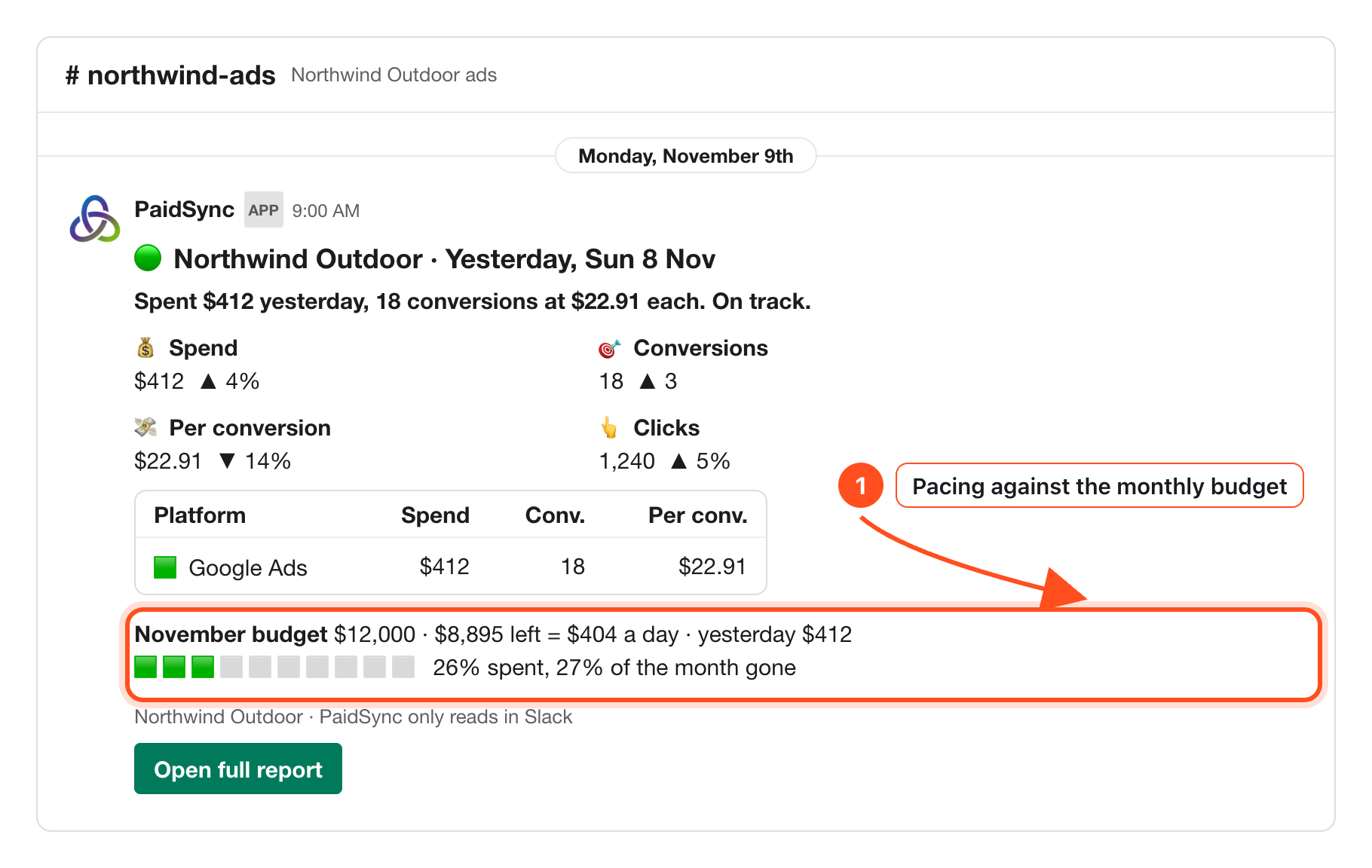
1A daily Google Ads report in the channel
At about 9:00 in the brand's time zone: spend, conversions and pacing against the monthly budget. From step 5 of the Slack guide.
2Ask questions in plain words
Mention @PaidSync and the answer comes back in a thread. From step 3 of the guide.
@PaidSync report last 7 days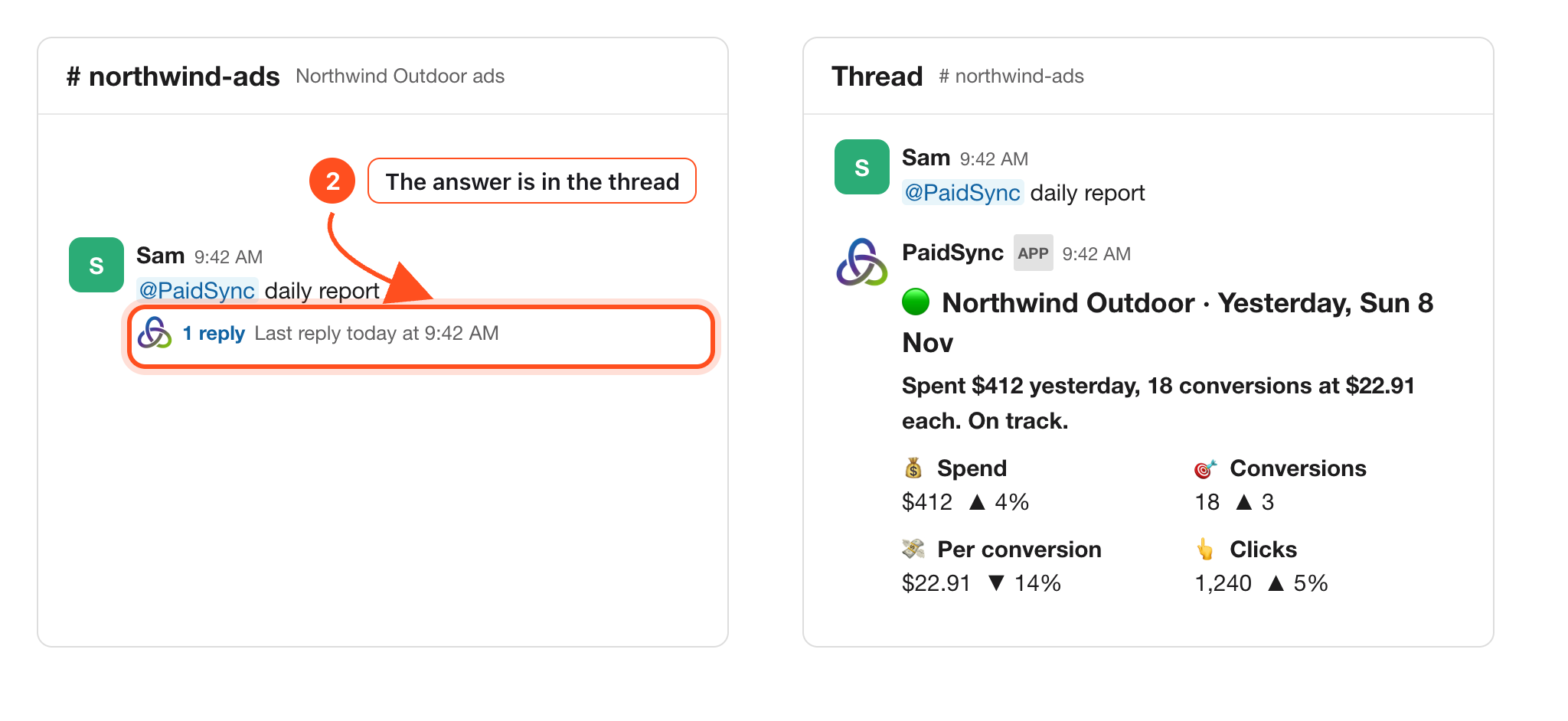
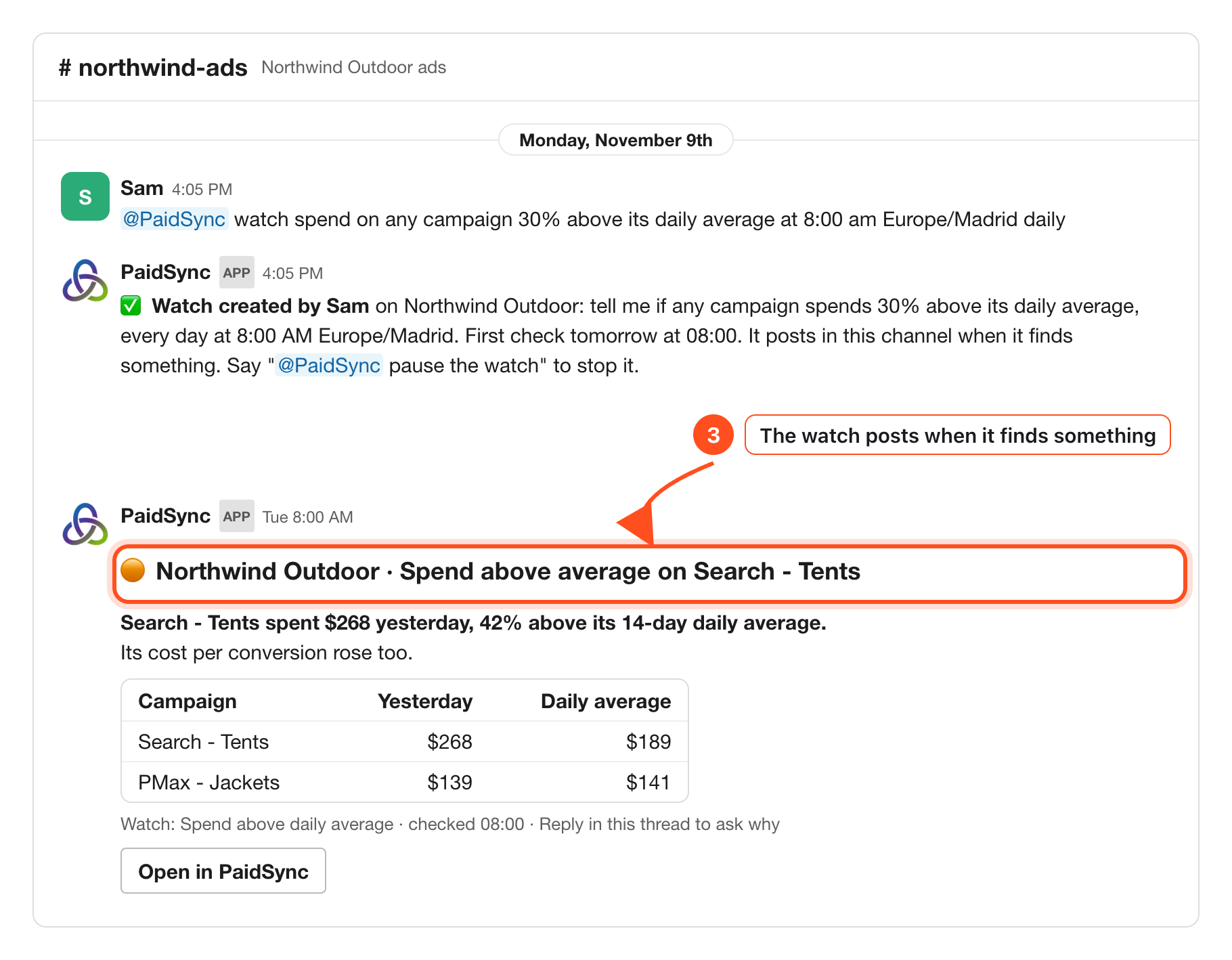
3Alerts when something matters
Set a watch at a time you pick; PaidSync checks every 15 minutes and posts in the channel. From step 7 of the guide.
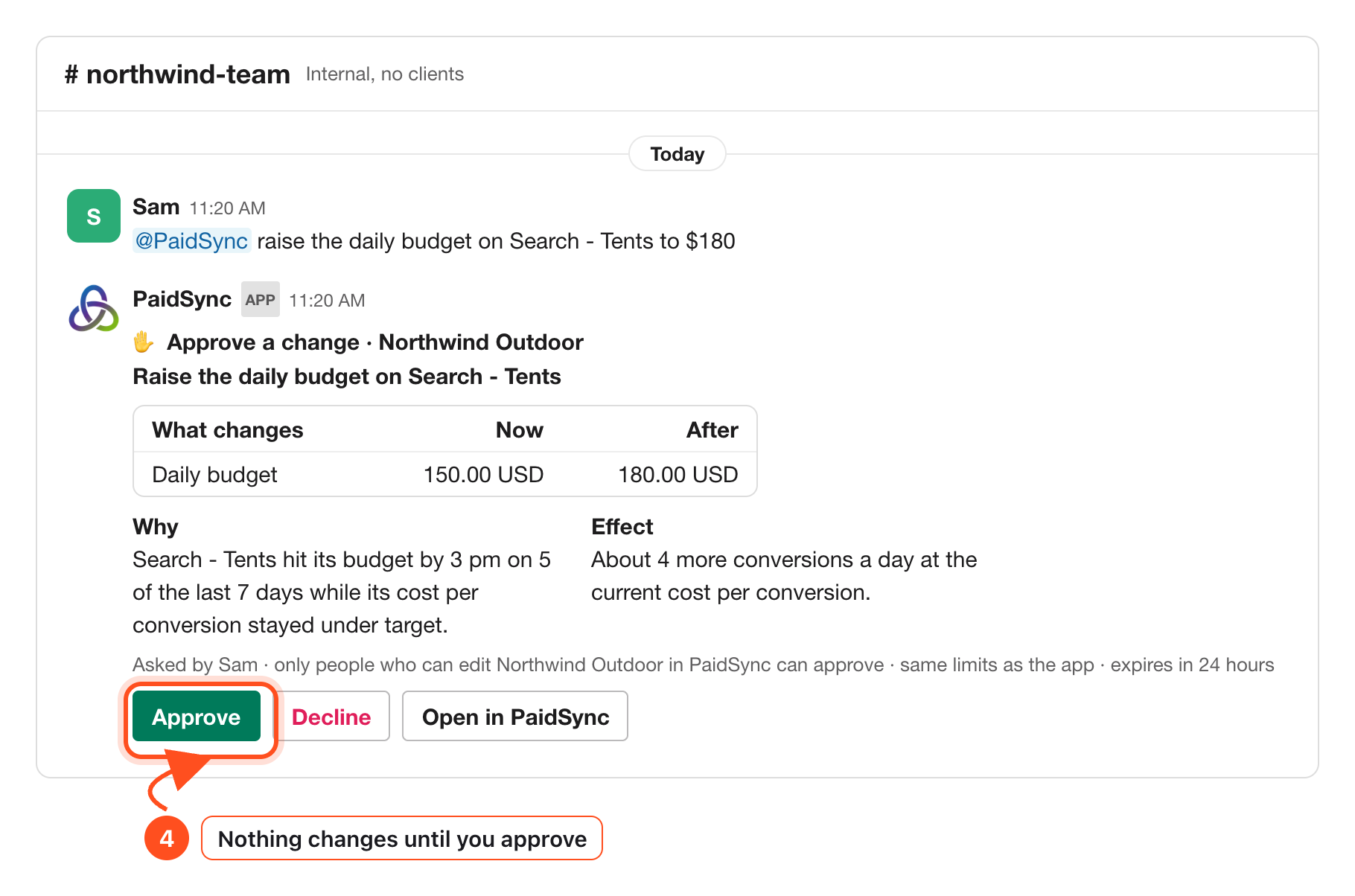
4Approve changes before they run
In an internal channel or a DM, a mention prepares the change as a card. Nothing is applied until you approve it.
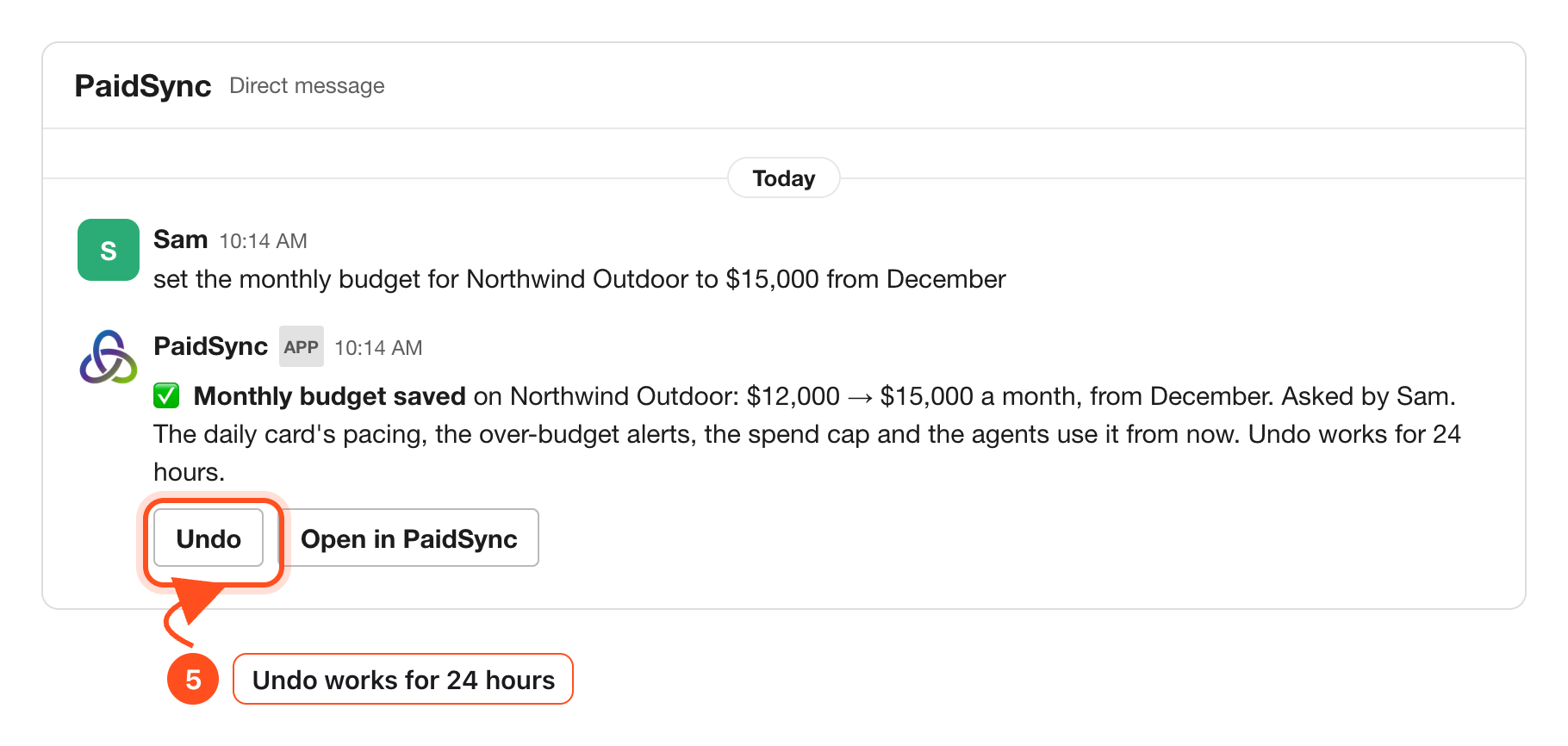
5Budgets said in Slack, with Undo
Say the monthly budget, a target cost per conversion or a target ROAS. The reply shows old to new, with Undo. From step 6 of the guide.
How to connect Google Ads to Slack, four steps
The full walkthrough with pictures is the Slack guide.
- Create a PaidSync account and connect Google Ads on Google's own sign-in screen.
- In PaidSync open Connect apps and press Add to Slack on the Slack row, then Allow in Slack.
- Pick the channel for the brand. A hello card posts there.
- Mention @PaidSync in the channel with your first question.
Messages to try in Slack
- "@PaidSync how did spend look yesterday?"
- "@PaidSync daily report"
- "@PaidSync report last 7 days"
- "@PaidSync watch spend at 7:30 pm Europe/Madrid daily"
- "@PaidSync list my watches"
- "correction november budget is 5000 usd"