

PaidSync.ai posts a daily card in a brand's Slack channel at about 9:00 in the brand's time zone, with a LinkedIn row showing yesterday's spend, conversions and cost per conversion, and the month so far against the brand's monthly budget. A watch set with @PaidSync checks every 15 minutes and posts only when LinkedIn spend moves past what you asked about. The monthly budget can be set in Slack in plain words by anyone who can edit the brand, with Undo for 24 hours.
Disclosure: PaidSync.ai publishes this page. The pictures below come from our Slack guide and use a made-up brand with made-up numbers.
Why LinkedIn spend needs a daily look
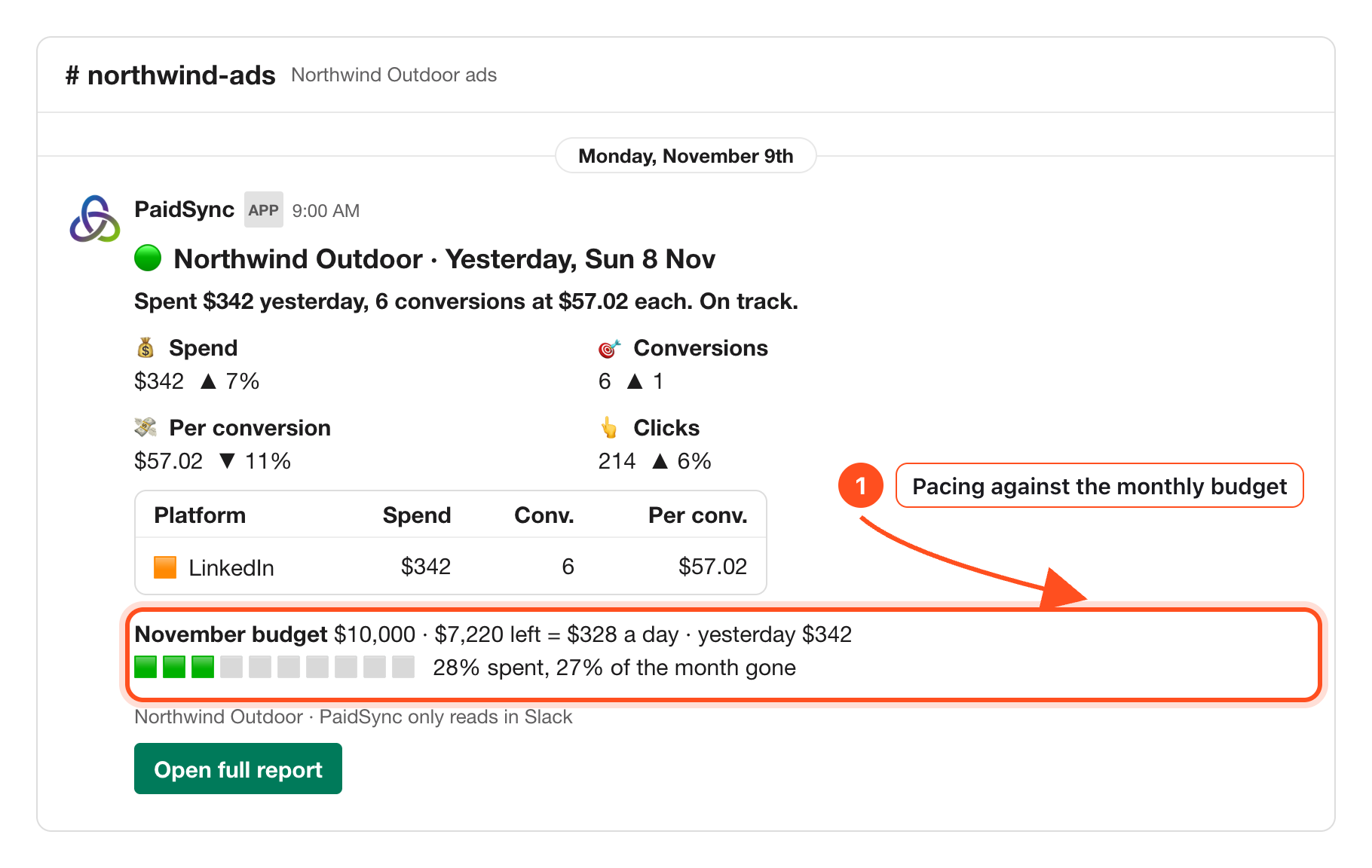
For a B2B team, LinkedIn conversions can come in single digits a day. In the card above, six conversions cost $57.02 each. One conversion fewer and the same $342 would cost $68.40 each. A single day can move cost per conversion a lot, so the useful question is not one day but the trend and the month.
Campaign Manager answers that question if someone opens it. Most of the team does not, every day. The point of the Slack card is that the LinkedIn numbers arrive where the team already talks, at the same time each morning, next to the month's budget.
Read the LinkedIn row in the daily card
The card covers yesterday, and every number comes from PaidSync's own report, not from the AI. Here is what each part tells a LinkedIn team.
- Four numbers against the day before. Spend, conversions, cost per conversion and clicks, each with an up or down arrow.
- The LinkedIn row. Spend, conversions and cost per conversion for every LinkedIn account on the brand, added together. With more platforms connected, each gets its own row and a Total row sits underneath.
- The month against the budget. The brand's monthly budget, what is left, what that leaves per day, and yesterday's spend, with squares that compare the share of budget spent to the share of the month gone.
- A status colour. Green when things look on track. Orange when the month runs more than 10 points ahead of the budget's pace, or when cost per conversion is more than 30% above the day before.
When LinkedIn has not loaded yesterday yet, the row says not loaded instead of a zero. A missing day never reads as a day without spend.
Ask for the card any time
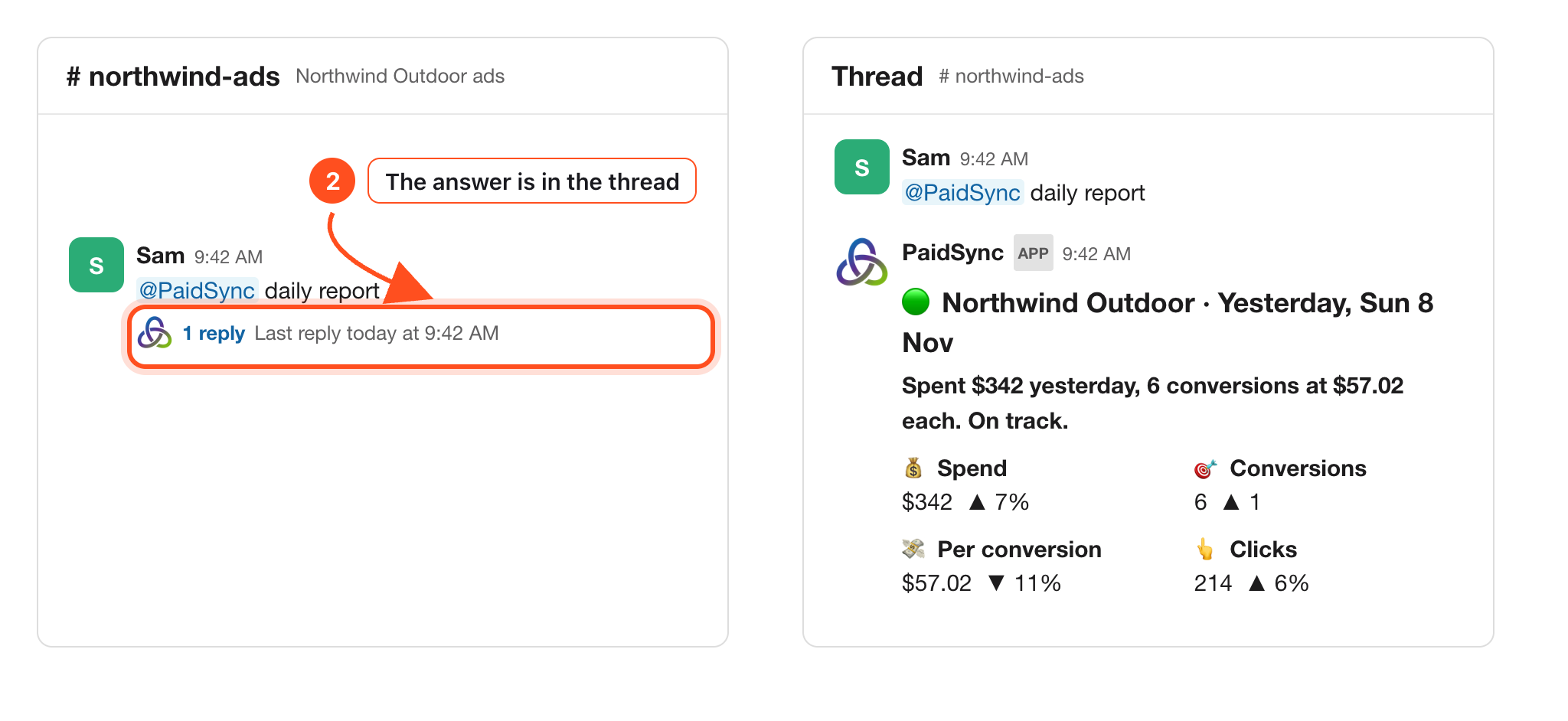
The card posts on its own each morning. To see it again, or before a meeting, mention @PaidSync with daily report in the brand's channel and the same card comes back in a thread.
Set a watch on LinkedIn spend
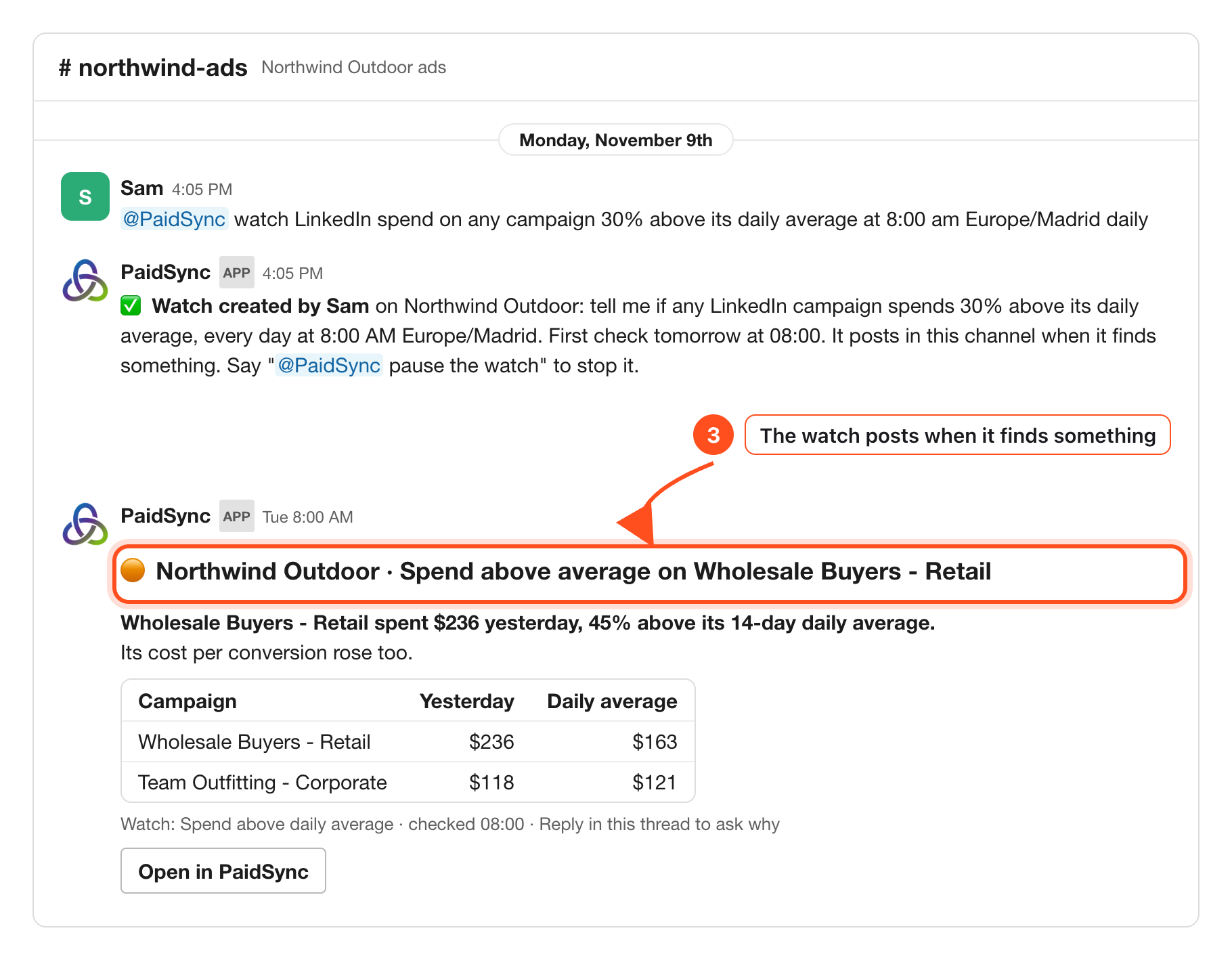
The daily card shows yesterday. A watch looks for one thing you care about and speaks up only when it finds it. Mention @PaidSync with what to watch and a time:
@PaidSync watch LinkedIn spend on any campaign 30% above its daily average at 8:00 am Europe/Madrid daily@PaidSync watchesto list them, then pause, resume or move one in plain words
PaidSync checks every 15 minutes, so a watch runs at about the time you set. When it finds something it posts a new message in the channel. When it finds nothing it stays quiet. A watch only reads; it never changes an ad account.
A watch that names LinkedIn, one campaign or "above its average" is an AI check of your data. A plain number on the brand's total, such as spend above 500 yesterday, runs as a numbers check without AI. If LinkedIn is the only platform on the brand, that total is your LinkedIn spend.
Set the monthly budget in Slack, with Undo
The pacing line needs a number to pace against. That number is the brand's monthly budget in PaidSync, kept in the brand's Brief. It is not a LinkedIn campaign budget, and setting it changes nothing inside Campaign Manager.
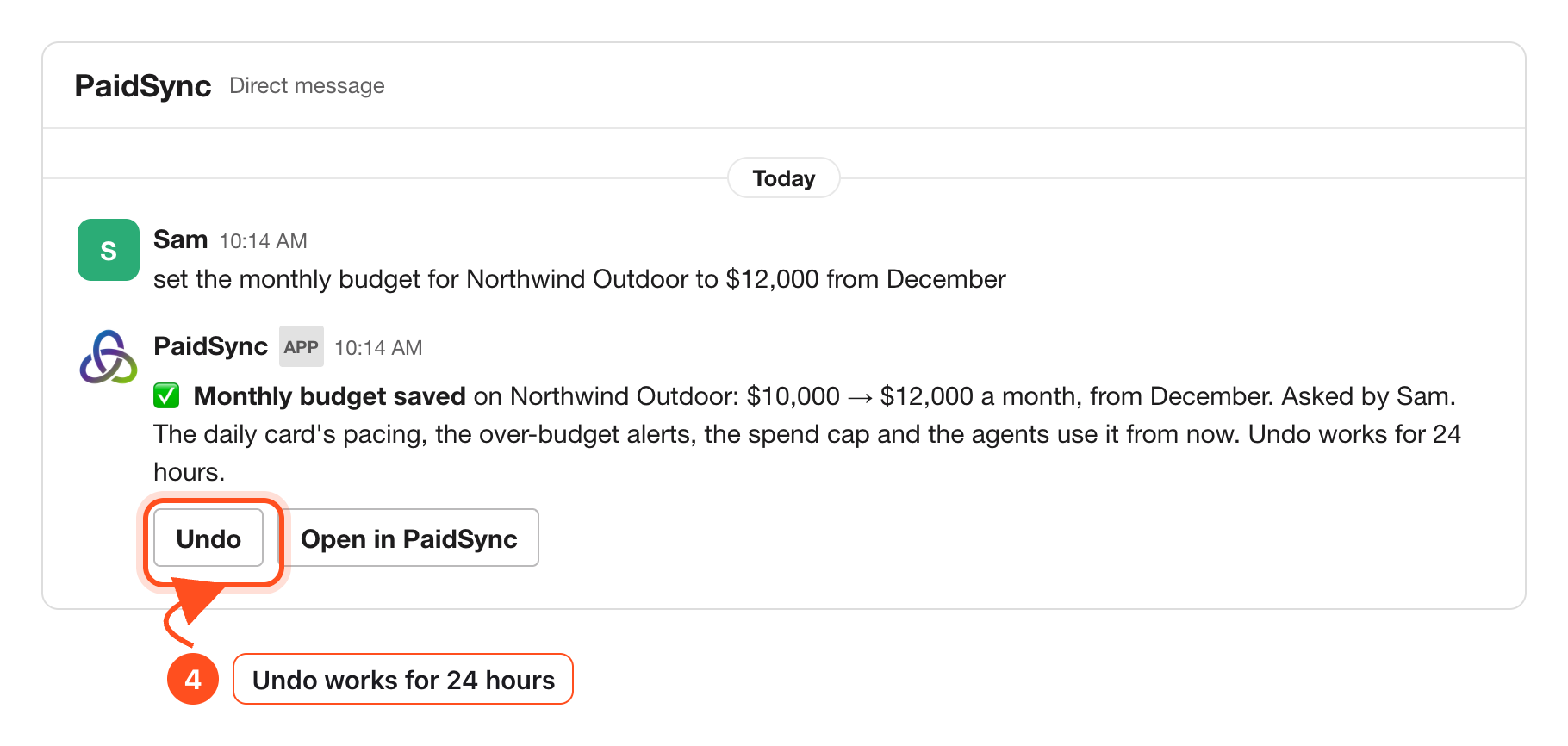
Say it in plain words in a direct message or the brand's channel, for example set the monthly budget for Northwind Outdoor to $12,000 from December. The reply shows the old and new amount and who asked. From then on the daily card's pacing, the over-budget alerts, the spend cap and PaidSync's agents use it.
- Only people who can edit the brand in PaidSync can change it.
- Undo works for 24 hours, for the person who asked.
- In a channel people outside the team can see, PaidSync changes nothing and asks you to say it in a direct message.
LinkedIn campaign changes happen in PaidSync
Slack approves one pause, enable or budget change on one Google Ads campaign, or on one Meta campaign, ad set or ad. LinkedIn is not on that list. If you ask for a LinkedIn change in Slack, the card carries an Open in PaidSync button, and the change is reviewed and approved in PaidSync.
In a channel shared with another company, or one with guests in it, PaidSync only reads.
Setup and the all-platform guide
Connecting LinkedIn Ads to a brand and adding PaidSync to Slack takes a few minutes and has its own page with every step. If you also run Google Ads, Meta or TikTok, the all-platform article covers one channel with a row for each.
How to connect LinkedIn Ads to Slack Setup → How to get your Google Ads, Meta, TikTok and LinkedIn results in Slack All platforms →Frequently Asked Questions
Can PaidSync alert me when LinkedIn Ads spend goes up?
Yes. Mention @PaidSync in the brand's channel with what to watch and when, for example LinkedIn spend on any campaign 30% above its daily average at 8:00 every day. PaidSync checks every 15 minutes and posts a new message in the channel only when the watch finds something.
Which LinkedIn numbers does the daily Slack card show?
Yesterday's spend, conversions, cost per conversion and clicks, each against the day before, a LinkedIn row with spend, conversions and cost per conversion, and the month so far against the brand's monthly budget. If LinkedIn has not loaded yet, the row says not loaded instead of showing a zero.
Is the monthly budget I set in Slack my LinkedIn campaign budget?
No. It is the brand's monthly budget in PaidSync, the number the daily card paces against and the over-budget alerts use. It does not change any budget inside LinkedIn Campaign Manager. Only people who can edit the brand in PaidSync can set it, and the person who set it can press Undo for 24 hours.
Can I approve a LinkedIn Ads change in Slack?
No. Slack approves one pause, enable or budget change on one Google Ads campaign, or on one Meta campaign, ad set or ad. A LinkedIn change prepared in Slack shows a card with an Open in PaidSync button, and you review and approve it in PaidSync.
When does the LinkedIn spend report post in Slack?
At about 9:00 in the brand's time zone, covering yesterday. A brand without a time zone gets it at 9:00 UTC, so set the brand's zone. You can also ask for it any time with @PaidSync daily report.